

Images can get broken by way of various processes. An SD card might not be working correctly, transfer of the file could be interrupted, the drive itself might be losing its capacity to store things, or the image could become corrupted after you’ve recovered it from a erased or formatted drive.
The hardest thing is that the actual damage is not always visible. Sometimes a picture that looks fine when you see it in a thumbnail, simply won’t open. Other time it opens, but with grey patches, colour lines, gaps in the image or with details that are somehow warped.
How photo repair software can help Photo repair software applications can tackle all sorts of image corruption, but because of the wide range of software tools on offer their effectiveness and the quality of results can differ significantly. There are those that repair JPEG images and others that support camera RAW.
We’ve rounded up five photo repair tools for you to check out, what they do, their supported formats, what they can fix and how practical they are.
1. Stellar Repair for Photo
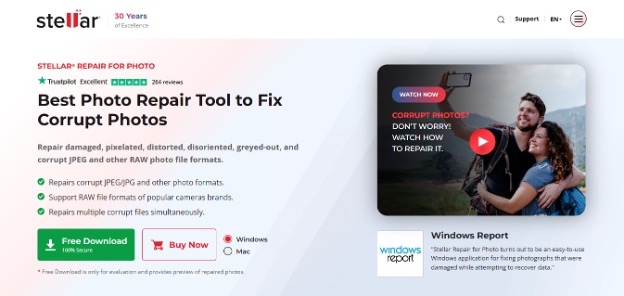
Stellar Repair for Photo helps to fix the corrupt and damaged photos that won’t open, are pixelated or greyed out, have distorted colours, or are corrupted in other ways.
As one of its advantages is the support for different image formats. With regular image formats like JPEG, JPG and TIFF, it also supports camera RAW formats like CR2, CR3, NEF, ARW, DNG, RW2, RAF and other formats. This may be of importance to photographers who have used various camera brands.
Batch repair enables you to repair multiple damaged photographs at once, instead of repairing each and every file separately.
One of the more remarkable features is Advanced Repair. If a normal repair doesn’t do the trick, it can sometimes help to drop in a sample photo (stored as a JPEG with the same shooting camera and format) that was taken in the same conditions, and the software will try to do a more advanced repair with it.
Another aspect to note is thumbnail extraction. In some situations, the full resolution image is heavily corrupted, but a thumbnail can still be retrieved. In that case the thumbnail is a smaller, slightly less accessible image of the photograph.
The quality of the repaired image, however, really depends on the image. You can often restore some of the images, or create a workable thumbnail version, but with more corrupt images, you may only be able to create grey patches or empty portions in the final full-size image. This applies in cases where the image data has been lost.
Stellar Repair for Photo combines broad format support and batch processing with intelligent repair features. This is definitely a product to keep in mind if you work with damaged JPEG and RAW images regularly.
Key features:
– Supports JPG, JPEG, TIFF, HEIC and several camera RAW formats
– Batch repair for multiple photographs
– Advanced Repair – using a good sample file
– Extracting thumbnails from supported damaged image files
– Preview repaired photographs before saving
2. Wondershare Repairit
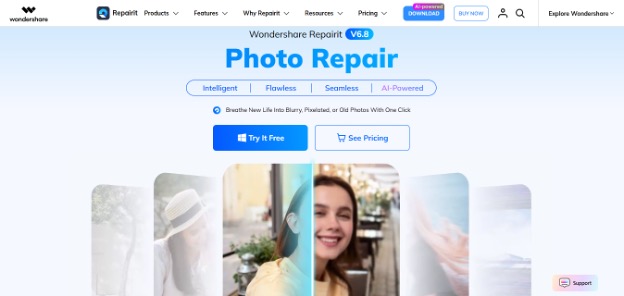
Wondershare Repairit a try. Repairit isn’t just photo repair software: it’s a component of a file repair platform that provides repair services for video, audio, and documents.
You can fix photo in popular file formats like JPG and JPEG and TIFF format. Plus it has a good number of RAW formats support like CR2, CR3, NEF, DNG, NRW, and RAF. Both online and desktop repair options are available which is a nice inclusion since some users may have more willingness to go with one or the other.
Another aspect to like about Repairit is that it has Advanced Repair. This is handy when a quick fix doesn’t work, and an extra option is needed when the images are too badly damaged.
The outcome can be extremely dependent on the photograph. A few distorted recordsdata may get better nicely from the repair course of, even though some might also additionally be off-line or yet again to be a pop up image.
An extra in some instances, exploring an eccentric repair might well also in some cases make a popularity.
Repairit can also be useful when comparing several repair tools; different software packages can yield different results on the same damaged image. It may be useful to have an alternative ready rather than assuming that one image repair is not enough to fix the photograph.
It is important to mention that the platform used for its repairs is larger and might have options that the photographer does not need and in the case that fixing the photo is the only thing that matters, just take a look at the options of photo repair and formats supported before opting for one plan.
Key features:
– Online and desktop photo repair options
– Compatibility with many image formats and most camera RAW formats
– Standard and Advanced Repair options
– A component of a more extensive file restoration platforms
– Supports multiple damaged image types
3. EaseUS Fixo
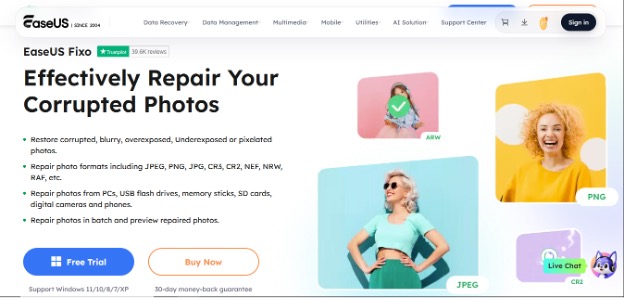
The focus for this program is damaged photos, videos and documents. The company’s photo repair tool is meant for opening photos that do not open, pink areas, grey areas, fuzzy/blurry/inaudible, grain and other colours.
Its compatibility with JPG, GIF, PNG, and TIFF makes it compatible with most image format. For photographers and those who take photography as a profession, the compatibility with RAW format is also great, with formats like CR2, CR3, NEF, NRW, RAF, DNG, and ARW.
Another benefit is batch repair. In the case of the transfer of hundreds of photos from a memory card, there are likely a few files that were not properly copied. Saving them all in a batch is easier than saving each individually, and the software offers a preview before saving.
But the repairs will not seem identical on each file that’s broken. Certain photos can be obtainable once again, while others may well only be with some degree of repair or stay unreadable. That is especially relevant in case the portion of picture info lost or corrupted in the course of repair is significant.
EaseUS Fixo is a good choice if you want an image repair program with image batching and support for popular image and RAW formats. You can also preview the repaired image to see the result before deciding to save it.
Key features:
– Compatible with JPEG, PNG, GIF, TIFF and several RAW formats
– Batch photo repair
– Preview fixed photos
– Created for the pixelated, blurry, greyed out, fuzzy images
– Also offers video and document repair
4. 4DDiG Photo Repair
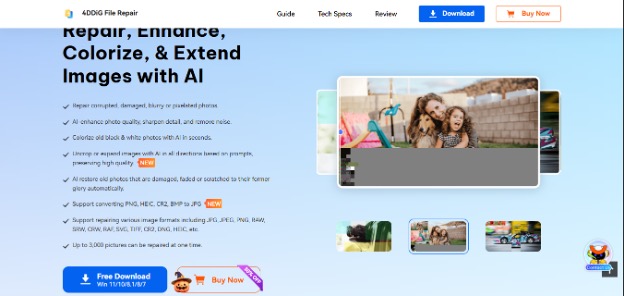
4DDiG Photo Repair has a slightly wider scope as it blends in with photo enhancement and restoration tools.
Its repair function is intended for problem photographs that have shown signs of pixelation, patches of grey, blurring or other imperfections. It is compatible with JPEG, JPG, PNG, TIFF, HEIC, and a host of other RAW formats including CR2, DNG, CRW, RAF and SRW.
A promising aspect is the advertised batch processing of up to 3,000 photos. This may be valuable for photographers with a large number of images, if a number of images were impacted by a storage or transfer problem.
Apart from repairing corrupted files, 4DDiG offers other tools to fix your photos, like photo enhancement, denoising, photo sharpening, black and white photo colorization, and restoring old photos.
If you don’t know the difference between these functions here is the explanation. When we want to fix a damaged photo we’re actually trying to recover readable image data. The enhancement and restoration features improve the way the images look and cannot recover the original missing data.
The most important issue with 4DDiG is that all of its features are catered for various types of image tasks. If you are mainly interested in repairing damaged photo files, make sure that you give 4DDiG’s repair features special attention instead of thinking that its enhancement features will fix all corrupted file types.
Of course, like with every other tool, the result depends on how damaged the file is. For example, a slightly distorted picture will behave differently from a picture with lost data or severely corrupted data.
Key features:
– JPEG, JPG, PNG, TIFF, HEIC and Multiple RAW File Support
– Promoted batch mode of processing up to 3,000 photos
– Photo repair and image enhancement features
– Old photo restoration and colorization
– Available for Windows and Mac
5. JPEG-Repair Toolkit by Disk Tuna
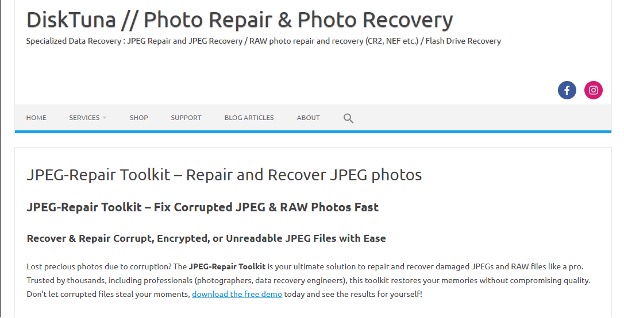
Unlike the other options on this list, this one has a more specialised and technical approach to repairing photos. It’s mainly targeted at JPEG files and offers multiple options for dealing with different types of damage.
Another method of repair they use is fixing a corrupted JPEG header. Sometimes a corrupt header can make an image, which could be repaired, impossible to open. Sometimes, it might be necessary to use a clean reference photograph, taken using the same camera and settings.
The editor tools in the toolkit enable you to extract embedded JPEGs from RAW files or to patch several parts of a JPEG data stream. This is handy when an image opens with missing chunks or a grey area or very bad colour shifts.
The main difference in this case is the amount of manual control that will be available. Rather than having an automated repair process at all times, you can choose between various repair options based on the type of damage you’re dealing with. This might be helpful for someone familiar with the JPEG file format.
But this might not be a win for you! Interface and repair process aren’t as simple as a regular one-click photo repair app. If you aren’t familiar with JPEG file structure, it might take you a while to figure out which repair is the right choice for you.
You should keep in mind that this is a mostly-JPEG tool. It can pull out embedded JPEGs from supported RAW files, but that is not the same as rescuing a corrupted RAW image.
In general, JPEG-Repair Toolkit is a good option if you have identified JPEG corruption and you are OK with a more manual repair process.
Key features:
– JPEG header fix
– Extract embedded JPEG from supported RAW files
– Requirements to deal with grey areas and image distortions
– Increased manual control over some repair procedures
– More of a JPEG repair than a full RAW reconstruction
What Should You Look for in Photo Repair Software?
It’s good to know what sort of damage you have before you begin picking up tools. An image that doesn’t load at all could be in a completely different state to an image that loads, but loads incorrectly.
And here’s some things to keep in mind:
1. Supported image types
Make sure the tool supports the formats you actually shoot in. If you’re a DSLR or mirrorless camera shooter, RAW support can be just as important as JPEG support. Not all tools support all camera types’ RAW files.
2. Type of repair supported
Several tools work on damaged headers, while others try to fix visual glitches or corrupt image data. Choose a solution that works for the type of corruption you’re seeing.
3. Batch repair
Batch processing can be helpful if there are a lot of pictures that need repair, but batch fixing doesn’t necessarily mean that every picture can be restored.
4. Preview before saving
A preview feature allows you to see whether the fixed image is potentially usable. This is important since a file can open after repair but have lost information and be corrupted with grey patches or colour errors.
5. Advanced repair options
Some heavily damaged images may require more than a simple repair attempt. Depending on the type of corruption, additional options such as sample-file-based repair or manual JPEG repair are available.
Final Thoughts
‘Scratched’ photos can be a real pain, especially if they hold some precious memories or work that is very hard to replace. The best solution is photo repair software, although the efficacy of such solutions is largely dependent upon the type of corruption and how severe it is.
Here is a breakdown of features with some of the best JPEG repair tools: Stellar Repair for Photo, Wondershare Repairit, EaseUS Fixo and 4DDiG all provide a varied level of automated repair, format support and extra features. For a more tailored solution, look at the more specialised options.
Always experiment with copies of a few affected images and examine the actual result before you sign off on any tool. Never overwrite the original files.
The most notable point is that no photo repair software can promise a total recovery of your photos. If the original data of the photo have been replaced or lost, you may even need an expert or a more powerful repair tool to recover the lost photo.